
How can we help?
Answers for buyers, families, carers and the people using the phone.
Before You Buy
Phone Plans and Connectivity
How do I turn on BigPurpleTalk?
BigPurplePhone SilverFox
BigPurplePhone Talk&Text
What is the Carer's Website
SilverFox Carer's Website
📱 What the Carer’s App actually is
The “Carer’s app” is the Carer’s Website:
-
👉 manage.bigpurplephone.com Note that there is no ".au"
-
You log in using the SMS link you receive after setting up the SilverFox BigPurplePhone
It’s designed to remotely manage the BigPurplePhone.
👥 Who can use it
-
Loved One → the person using the phone
-
Carer (you) → main controller with full access
-
Family Administrators → up to 4 extra people who can also manage it
-
Contacts → people saved on the phone
-
Emergency Contacts → get alerts if SOS is pressed (with location)
🧭 How to use the Carer’s Website (simple steps)
🔐 1. Log in
-
Go to the Carer’s Website
-
Enter login details (sent in an SMS when phone was set up)
⚙️ 2. Manage the phone (main features)
📇 Add and manage contacts
-
Tap Contacts
-
Tap Add New Contact
-
Enter details + add photo
-
Tap Save
👉 Important:
-
Adding a contact also adds them to the Safe Callers List (if enabled)
-
You can edit or delete contacts anytime
🔒 Safe Callers List (very important)
-
When turned on → ONLY Saved Contacts can call the phone
-
Helps prevent scams or unwanted calls and text messages
⏰ Set reminders (e.g. medication)
-
Scroll to Reminders → tap Manage
-
Tap Add
-
Choose time and days
-
Add a title (such as. “Take medication”)
-
Save
✔ Repeats automatically until removed
📞 Make a video call
-
Tap Make a Video Call
-
Select contact
-
Tap Start Call
👉 If missed, the user gets a notification
🖼️ Share photos
-
Tap Share Photos
-
Add up to 5 photos
-
(Optional) add a short message
-
Tap Add
📲 Appears full-screen on the phone
🎵 Add music, radio & apps
-
Choose radio/music stations
-
Over 70 apps (like Facebook, YouTube, WhatsApp, Spotify) are available
🔍 Find My Phone
-
Tap Find My Phone to see location
-
Can disable phone if lost
⚙️ 3. Adjust phone settings
You can control things like:
-
Make icons bigger
-
Turn voicemail on/off
-
Show recent calls (0, 3, or 6)
-
Auto speakerphone
-
Turn features on/off (weather, SOS, help)
🔘 4. The “Manage” button on the phone
-
Opens the Carer’s Website from the phone
-
You can turn it off if it confuses the user
-
If turned off, you must log into the Carer's Website from another device to turn it back on
👍 Easy way to understand it
-
You (carer): use the website to set everything up
-
Loved one (user): just tap big buttons to call, see photos, etc.
💡 Extra helpful tips
You can invite family to:
-
video call
-
share photos
-
Emergency contacts get:
-
SMS alerts
-
location map when SOS is pressed
-
Some features (like WiFi/Bluetooth) are turned on using the Carer's website first
Articles you may find helpful
Do I need to pay for a subscription?
Need a new SIM plan?
My BigPurplePhone does not ring long enough.
I have a BigPurple SIM.
Please call BigPurplePhone on 1300 206 306, or email hello@bigpurplephone.com.au and we can help you with this.
Extend the ring time on Telstra mobile.
- On your BigPurplePhone clicking into the phone button then the dial pad like you are going to make a call.
- Using the dial pad, dial the following sequence: **61*101** (and then the number of seconds you would like your phone to ring for: 15,20,25, or 30)
- Tap #
- Then press the call icon
Example: To extend the ring time to 30 seconds, dial: **61*101**30# then press the call Icon.
A message will pop up to let you know that the code is successful.
- On your BigPurplePhone clicking into the phone button then the dial pad like you are going to make a call.
- Using the dial pad, dial the following sequence: **61*321** (and then the number of seconds you would like your phone to ring for: 15,20,25, or 30)
- Tap #
- Then press the call icon
Example: To extend the ring time to 30 seconds, dial: **61*321**30# then press the call Icon.
A message will pop up to let you know that the code is successful.
Extend the ring time on Vodafone mobile
- On your BigPurplePhone clicking into the phone button then the dial pad like you are going to make a call.
- Using the dial pad, dial the following sequence: **61*11** (and then the number of seconds you would like your phone to ring for: 15,20,25, or 30)
- Tap #
- Then press the call icon
Example: To extend the ring time to 30 seconds, dial: **61*11**30# then press the call Icon.
A message will pop up to let you know that the code is successful.
Does the BigPurplePhone dial 000 or 112?
The SOS button on the BigPurplePhone dials Triple Zero (000) when it is activated.
Does BigPurplePhone support WiFi calling?
1. Start on the BigPurplePhone Home screen and scroll down. If Wi-Fi is already there as a menu icon, please skip to step 3 now. If Wi-Fi is not on the home menu, scroll to the bottom of the menu and select the 'Manage' Settings Icon.
2. Scroll to the bottom of the 'Manage' Settings page to the 'Settings' section, and turn on the 'Wi-Fi' Icon. If the switch turns purple, you know it is on. Once the 'Wi-Fi' icon is on, select 'Home' at the top left of the screen.
3. Scroll to the 'Wi-Fi' Icon on the home menu and Select it. It should appear somewhere below the 'Brightness' Icon and above 'Manage'.
4. You should now see a large title 'Internet' at the top of the page. Immediately below this is a triangle symbol next to a mobile network name, that for you should be 'Telstra' (note: this is NOT below the 'Wi-Fi' section). To the right of this entry, should be a small Settings Cog symbol. Select the Settings Cog.
5. Scroll down on the page until you reach the 'Calling' section where 'Wi-Fi Calling' is an option. Immediately under this it should say 'Call over mobile network' in subscript - this is what we are changing. Select 'Wi-Fi Calling'.
6. If 'Use Wi-Fi calling' is currently off, select it to turn it on.
7. Immediately under 'Use Wi-Fi calling', it should now display 'Calling preference' with 'Call over mobile network' in subscript. Select 'Calling Preference'.
8. Select 'Call over Wi-Fi' as the Calling Preference. It is selected if the little circle is coloured in. This selection should navigate you back to the 'Wi-Fi Calling' page.
9. Select the 'backspace arrow' <- at the top left of the screen.
10. This should navigate you to the 'Telstra' page. Select the 'backspace arrow' again <- at the top left of the screen.
11. This should navigate you to the 'Internet' page. Select the 'backspace arrow' once again <- at the top left of the screen.
12. You should now be back inside the BigPurplePhone Home page. 'Wi-Fi calling has now been enabled (🌟Congratulations!🌟). If you like, you can switch the 'Wi-Fi' Icon off in 'Manage' and Wi-Fi Calling will still stay on. This step is up to you!
Does BigPurplePhone have Siri, Alexa or Hey Google?
Will I have coverage on the BigPurplePhone ?
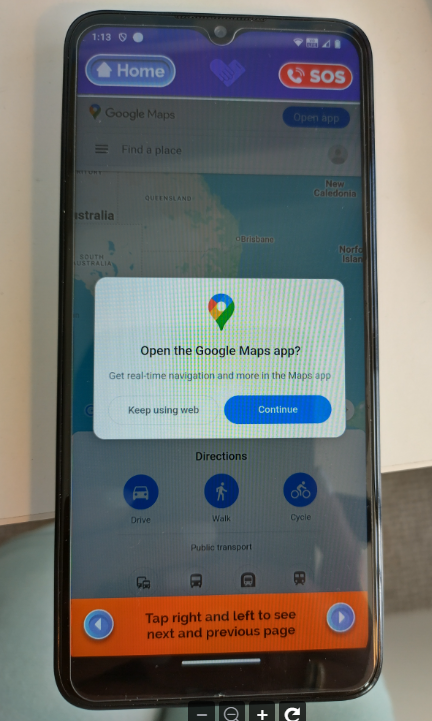
When I try to use Maps I get an error "Go back to safety"
What comes in the box with the BigPurplePhone?
What's in the box?
- BigPurplePhone
- Clear jelly case
- Wall plug and USB-C charging cord
- Welcome letter
- Welcome picture book
- Quick Start Guide
- Detailed instructions for Carers (for BigPurplePhone Silverfox edition only)
- Sim extraction tool
- Manufacturers safety leaflet
If you purchased a BigPurpleSIM with your BigPurplePhone:
- Your Nano SIM card will already inserted inside your phone
- SIM card plastic extender. This is handy if you choose to use the SIM in another phone at some stage that requires Standard or Micro SIM size.
Can I hotspot from my BigPurplePhone?
Will my new BigPurplePhone come with a charger?
Can I use a memory/ SD card for storage in my BigPurplePhone?
I can get a SIM from a supermarket or other provider for much less, why does BigPurpleSIM cost more?
A BigPurpleSIM plan is very different to other mobile phone plans.
Firstly, there are no lock-in contracts, just pay month-by-month, as you go.
We have a 'Help' button on every phone which calls our call centre where we provide technical support. If you choose our SIM then we can also support you with your mobile phone plan and billing without confusing ID verification each time you call, because your phone is already on our system.
The monthly subscription also covers:
○ Unlimited National calls and SMS/MMS*^
○ Internet connection for the BigPurplePhone SilverFox Edition
○ BigPurplePhone Premium Support and Service - Over the phone support so our vulnerable customers do not need to deal with call centres overseas. Because it is a fleet, we don't have the same problems with identifying people either when they call us - a huge benefit for many!
^ Subject to Fair Use Policy and Shipping Policy. Always read the Critical Information Summaries and Terms and Conditions when you buy.
Can a silent number call a BigPurplePhone when Safe Callers List is enabled?
Silent number reveal code from mobiles: *31#
Silent number reveal code from landline: 1832
How to call a BigPurplePhone from a silent number
- Ensure your Silent Caller is saved as a contact on the BigPurplePhone
- When the Silent Caller calls the BigPurplePhone, enter *31#(mobile) or 1832(landline) first
- Then dial the BigPurplePhone mobile number
- The call will be received.
Related articles
- How do I edit or delete a Contact on the BigPurplePhone?
- How to enable or disable the Safe Callers List
Some further information and instructions from the ACMA are available on the link below regarding silent numbers.
Does the BigPurplePhone have a web browser or email?
Social Media
Facebook, Instagram, FB Messenger, WeChat, Zoom, WhatsApp, Signal
Search
Google Maps, Google, Internet
Gmail, Outlook, Yahoo Mail, iCloud Mail
Food and Transport
Uber, UberEats, 12cabs, Coles, Flybys, Everyday Rewards, Woolworths, Opal Travel, Tripview Lite, Aldi
Health and Lifestyle
HotDoc, medibank, AlayaCare, BlueCare Hub, Weather, Estia Health, Mable, EasyVisit, Med-Advisor, Bible App, Google calender, Google Health, Google Keep, Address Book, BBC News, Omron, Connect, Hyegrove Connect
Entertainment
YouTube Music, Spotify, Youtube, ABC, Audible, Borrow Box, Libby, ABC Listen, Netflix, NYT Games, Tunin Radio, Amazon Kindle, Pocket Casts
Banking
ANZ, Comm-Bank, ING Banking, NAB Banking, Westpac, St.George Banking, NBPS Banking, Bendigo Bank, Reginal Australia Bank
Accessibilty
VA Connect, National Relay Service, Hearing Australia, Be My Eyes, Hearing Remote, Meta AI, Envision Companion, WeWalk, Amplifon, BeMore, Life360, myPhonak, Oticon, Signia App, My Starkey, Seeing AI, Unitron Remote, Live Transcibe, Envision, Ally, Emvi, Dolphin EasyReader, TapTap-See,
Shopping
Temu, eBay, Amazon Shopping
Telecommunications
My Telstra, My Optus, My Vodaphone, Aldi Mobile, Amaysim, My Lebara
Government Services
Related Articles
Am I locked into a contract?
No, you can cancel anytime.
You own the handset outright and if you choose a BigPurplePhone monthly subscription, it is prepaid.
If you choose to stop using the BigPurplePhone service, simply send us an email at hello@bigpurplephone.com.au or call us on 02 9188 6998 Monday - Friday 9am-5pm AEST - we will cancel your account, and return your phone back to a regular Android phone.
Who pays for the calls/data?
If you use your own SIM, you need to arrange payment with your provider. For the BigPurplePhone to work properly, you will need a plan with at least 5GB/month.
If you buy a BigPurpleSIM, calls and data are included in the monthly fee for the BigPurpleSIM.^
^ Calls and data use are subject to our Fair Use Policy
Who pays for the handset?
In some circumstances, government funding may be available for the handset, more information about MyAged Care and NDIS available from here -https://bigpurplephone.com.au/pages/buy-bigpurplephone-with-your-chsp-or-home-care-package
Can I use my headphones with the BigPurplePhone?
Yes, the BigPurplePhone has a 3.5mm headphone jack where you can plug in your corded headphones or you can connect using Bluetooth, if you have a Bluetooth enabled headset.
Can I keep my old phone number?
Yes, when you purchase the BigPurpleSIM, you will have the option to keep your existing phone number or you can get a new phone number, if you prefer. We will arrange to have it transferred to Telstra for you.
Alternatively, you can swap your existing SIM over to your new BigPurplePhone, Note that, if you use your own SIM, you will need at least 5GB/month to ensure all BigPurplePhone features work properly.
Which phone number should I place on my order at the checkout?
This is the number we use in case we need to contact you about the delivery of the phone.
When you receive the handset, you will be asked to enter your name and contact number as well as your Loved One’s name and the mobile number of the phone.
Can my Child or Loved One call someone who is not a saved Contact?
Yes, they can use the keypad to dial any number.
While people who are not trusted contacts cannot call the BigPurplePhone when the Safe Callers list is enabled, your Loved One can make calls out to other numbers using the keypad.
Is the BigPurplePhone available outside of Australia?
Yes, the BigPurplePhone is available to people everywhere the Nokia or Motorola handsets can be used. You will need a local SIM.
We also have an Intenational Calls Add On which enables unlimited calling and SMS to 15 countries (China, Hong Kong, Malaysia, Singapore, UK, Germany, India, NZ, South Korea, Vietnam, Greece, Ireland, Indonesia, Thailand and USA).
Plus, you can have a video call with friends in other countries who have the free BigPurplePhone SilverFox system installed and they can video call the BigPurplePhone using WiFi.
In addition, BigPurplePhone SilverFox can call using Facebook Messenger, Signal, WeChat, WhatsApp or Zoom (if those Apps are selected using the Carer's Portal or 'Manage' feature) and the other person has the App (or can use it's Web version). Please be aware that BigPurplePhone can not provide support for these Apps.
Can I change the order of the Contacts?
Contacts are listed Alphabetically, with Recent Callers in a panel at the top of the list. It is not possible to alter the order of Contacts listed.
How do I turn off the Safe Callers List?
BigPurplePhone Talk&Text
BigPurplePhone SilverFox
- If you are a Carer, sign into the Carer's Portal at admin.bigpurplephone.com and go Phone > Settings > Disable Safe Callers List, or
- If the Manage icon is enabled on your BigPurplePhone, you can access the phone settings by going Manage > Phone > Settings > Disable Safe Callers list
Allowing 'All Calls' can be helpful for a period of time to allow an expected call or SMS such as when receiving a call from a therapist or a code from MyGov. After receiving that call or SMS, the Safe Callers List can then be enabled again. This can be done an unlimited times on SilverFox.
How do I know if the BigPurplePhone is right for my Loved One?
If you answer yes to the following questions, then it is likely to be a suitable solution.
○ Do they no longer bank online?
○ Do they no longer shop online?
○ Do they find mobile phones overwhelming and basic functions confusing at times?
○ Do they get lost in the phone Settings?
○ Do they struggle to see the keyboard when they send a text message?
○ Do you worry about scammers taking advantage of your Loved Ones vulnerability?
How much data is needed each month?
If you buy a BigPurpleSIM from us, data usage is included as a part of the BigPurplePhone service^.
If you bring your own SIM, we recommend a plan with at least 5GB monthly as a minimum.
^ BigPurpleSIM use is governed by our Fair Use Policy
Where can I use my BigPurplePhone?
BigPurplePhone’s default mobile network provider is Telstra Wholesale 4G.
Does the BigPurplePhone use 3G, 4G or 5G?
No. BigPurplePhone does not use the 3G network.
3G has now been switched off in Australia. BigPurplePhone uses 4G instead — the network with the widest national coverage.
While 5G can offer faster speeds, it’s still limited in many areas and often comes at a higher cost. That’s why BigPurplePhone is built on 4G — for consistency, coverage, and reliability.
In short: no 3G, no gaps — just a strong, dependable 4G connection.
Can I pay for the phone and the SIM separately?
Can I just buy the BigPurplePhone and use my own SIM card?
Phone Features
What is BigPurpleTalk?
BigPurpleTalkTM
Does BigPurplePhone have Facetime?
BigPurplePhone SilverFox
BigPurplePhone SilverFox and SilverFox+ Editions have their own video call feature, similar to Facetime. For the person using the phone it is very simple to use, the call comes in much like a phone call. They can see the face and name of the person calling in a large full screen notification.
BigPurplePhone Talk&Text
BigPurplePhoneTalk&Text Editions are not able to make or receive video calls.
How does the "No Scam" feature of BigPurplePhone work?
When the Safe Callers List is enabled, only the Contacts that are saved to the BigPurplePhone can call your phone.
When you set up your BigPurplePhone you are asked if you would like us to block unknown callers. When you select this, Contacts that are not saved in the Contact list are blocked.
Callers that attempt to call the phone and are not on the list are blocked in the same way Telstra stops blocked numbers from getting through (the caller hears the default Telstra MessageBank message but this is not passed on to the user).
Does BigPurplePhone have the Google Play Store or Apple Store?
No, BigPurplePhone does not use either.
We have carefully selected and tested a number of Third Party Apps based on customer feedback; refer to Which Apps are available on the BigPurplePhone? for more details.
There are no third party Apps available on the BigPurplePhone Talk&Text Edition.
Which Apps are available on BigPurplePhone?
BigPurplePhone SilverFox Editions
Social Media
Facebook, Instagram, FB Messenger, WeChat, Zoom, WhatsApp, Signal, KakaoTalk
Search
Google Maps, Google, Internet
Gmail, Outlook, Yahoo, iCloud Mail
Food and Transport
Uber, UberEats, 13cabs, Coles, Flybys, (Everyday) Rewards, Woolworths, Opal Travel, Tripview Lite, Aldi
Health and Lifestyle
HotDoc, Medibank, AlayaCare, BlueCare Hub, Weather, Estia Health, Mable, EasyVisit, Med-Advisor, Bible App, Google Calendar, Google Health, Google Keep, Address Book, BBC News, Omron, Connect, Hyegrove Connect, HeartBug, Calculator
Entertainment
YouTube Music, Spotify, Youtube, ABC, Audible, Borrow Box, Libby, ABC Listen, Netflix, NYT Games, Tunin Radio, Amazon Kindle, Pocket Casts, SBS Audio, The Australian, Sydney Morning Herald
Banking
Accessibility
VA Connect, National Relay Service, Hearing Australia, Be My Eyes, Hearing Remote, Meta AI, Envision Companion, WeWalk, Amplifon, BeMore, Life360, myPhonak, Oticon, Signia App, My Starkey, Seeing AI, Unitron Remote, Live Transcribe, Envision, Ally, Emvi, Dolphin EasyReader, TapTap-See, Speech Assistant AAC, Avaz AAC, Bernafon
Shopping
Temu, eBay, Amazon Shopping
Telecommunications
My Telstra, My Optus, My Vodaphone, Aldi Mobile, Amaysim
Government Services
Note 1: These Apps will not be added to the phone unless you add them using the Carer's Website or using the Manage button on the phone.
Note 2: We do not offer Google Play Store, hence some of these are Apps and some are a website, depending on what is technically feasible and given our unique platform. For example, Uber and Facebook are the mobile website version of the service.
Note 3: BigPurplePhone does not provide support for third party Apps and mobile websites. Refer to the individual providers website for support for these services.
Note 4: Only the Applications listed are currently available on SilverFox and SilverFox+ Editions however, if you need another Application, please contact us at support@bigpurplephone.com.au
BigPurplePhone Talk&Text
Can the Buttons, Icons or Text be made larger?
On BigPurplePhone SilverFox and SilverFox+ Editions, there is an extra large icon setting Manage > Phone > Icon size which can be set to 'Large'.
What happens if the handset gets lost?
BigPurplePhone SilverFox
2. Click on the Find My Phone menu button and you will see a map with the location of the handset indicated by a pointer with a Phone symbol.
BigPurplePhone Talk&Text
Do you have a Features List?
Talk&Text $599 | SilverFox $749 | |||
| Hardware | Latest technology mobile phone, 50 MP camera, 3 day battery life, 2 year warranty. Internal storage: 128GB RAM: 4GB/6GB virtual. | ✔ | ✔ | |
| Phone | Make phone calls using picture driven contact list or dial pad Extra large, Accessible dial pad | ✔ | ✔ ✔ | |
| Secure Network | Your phone is personalised to you and is managed on our secure fleet of phones. This allows us to assist in remotely supporting your phone with software upgrades and support. | ✔ | ✔ | |
| No Fandangle | All Menu Settings hidden so users don't get "lost" in phone Settings (volume is still available) Optional Manage button for more able users to access limited settings on the Phone | ✔ | ✔ ✔ | |
| PIN | No PIN to open the phone Option to set PIN for apps where security may be desired | ✔ | ✔ ✔ | |
| Contacts | Add, Save, Edit and Delete Contacts Save Emergency Contacts | ✔ ✔ | ✔ ✔ | |
| Text Messages | Send text messages to saved contacts using the BigPurplePhone extra large Keypad, or Speak a Message using the large easy button. Speak your message and your phone will type the text for you. Attach images (gif, jpeg or png) and send. | ✔ | ✔ | |
| SOS button | SOS button on every BigPurplePhone screen. Tap the button to send an SMS to emergency contacts with a google map of the phone’s location. A 10 second countdown commences and the user is re-directed to the system dialler which can call 000 regardless of SIM or mobile data. | ✔ | ✔ | |
| Camera | 48 megapixel dual camera with buttons for easy use | ✔ | ✔ | |
| Photo Gallery | Like photos to be saved to the top of the list Share photos using Carers Portal and Family&Friends Portal | ✔ | ✔
| |
| No Spam or unwanted calls | No spam or unwanted calls or texts | BigPurplePhone can block all unwanted spam and hoax callers and texts by enabling the Safe Callers List. Ideal for people with vulnerability to being scammed. Your Safe Callers List can be enabled when you set up your phone and will block any call that is not from a saved Contact. | ✔ | ✔ |
| Enable or disable Safe Callers List | SilverFox customers can enable All Calls or choose the Safe Callers List instantly via the Carer's Portal. This can be enabled by visiting the Carer's Portal at admin.bigpurplephone.com and selecting Phone > Settings > Safe Callers List. This feature can be helpful when the All Calls are desired for a period of time to allow an expected call. The Safe Callers List can then be enabled again. This can be done unlimited times. | ✔ | ||
| Torch | Simple button on the screen to turn on the torch | ✔ | ✔ | |
| Brightness Control | Large slider for brightness control | ✔ | ✔ | |
| Volume | Fly out menu to set volume and select ring tones | ✔ | ✔ | |
| Voicemail | Telstra MessageBank Easy, full screen voicemail notification is not easily missed. Simple one click call back feature Enable or disable Voicemail on Portal | ✔ ✔ | ✔ ✔ ✔ | |
| Speakerphone | Loud Speakerphone. 88 Decibels. Set the phone so it always answers on Speakerphone | ✔ | ✔
| |
| Full Screen Notifications | Large, full screen notifications for New Messages, Missed calls, Missed Video calls, low battery, reminders and new photos | ✔ | ✔ | |
| WiFi | Connect to WiFi Enable or disable WiFi button remotely | ✔ | ✔ ✔ | |
| Bluetooth | Connect with Bluetooth Enable or disable Bluetooth button remotely | ✔ | ✔ ✔ | |
| Carer's Portal | Carer portal so that Carers can manage the phone remotely at admin.bigpurplephone.com | ✔ | ||
| Family and Friends Portal | Securely and simple video call loved ones using our Family&Friends portal at my.bigpurplephone.com | ✔ | ||
| Customer Care | Friendly, Australian customer care team Help button on the phone direct to BigPurplePhone call centre | ✔ | ✔ ✔ | |
| Manage button | Access the Carer Portal via the optional “Manage” button on the BigPurplePhone. Option to hide or keep the Manage button on the BigPurplePhone | ✔ | ||
| Find My Phone | View map of BigPurplePhone's location using the Carer Portal. | ✔ | ||
| Video Calls | One click video calls through to Contact's phone | ✔ | ||
| Weather | One screen showing today’s weather and the weather for the week, geo located to the phone’s location | ✔ | ||
| Radio | Simple one click radio stations. Select your favourite radio station. Simply tap to play the station and tap off. | ✔ | ||
| Music | Choose from 6 music genres. Alternatively choose to add Spotify or YouTube Music to your BigPurplePhone | ✔ | ||
| Internet Browser | Browse from a list of secure sites | ✔ | ||
| MyGov | Login to MyGov Note, MyGov sends a code by SMS when you sign in. If this is used, then the user will need to have the Safe Caller List disabled to receive the code. | ✔ | ||
| State Governments | Add a button to visit your local state services easily. | ✔ | ||
| Vaccination Certificate | Upload a Vaccination Certificate | ✔ | ||
| Safe BigPurplePhone world | The BigPurplePhone world does not allow downloading or uploading files, sharing and other potentially harmful content. Blacklisted sites are blocked for harmful or adult content. | ✔ | ||
| Disable unwanted buttons | Toggle off any buttons to make the BigPurplePhone home simpler, providing only buttons for features you use | ✔ | ||
| Add external WebApps | | Select additional WebApps to link to your BigPurplePhone. Select from Audible, Facebook Facebook Messenger, Gmail, Google, Google Maps, Instagram, MyGov, Outlook, Spotify, Uber, UberEats, WeChat, WhatsApp, Yahoo!, YouTube, YouTube Music, Zoom, and the Service App or website for your State or Territory. | ✔ | |
| Annual and Medial Reminders | Birthday and anniversary reminders Medical daily and weekly reminders | ✔ ✔ | ||
| Low Vision Features | Large buttons and text Extra very large home screen and Contact icons ideal for low vision BigPurpleTalkTM speaks the home screen, phone and keyboard in text messages as you type Enable Text to Speak for mild impaired vision High Contrast dial screen AA Accessibility rated (Wc3 Convention) | ✔ ✔ ✔ ✔ ✔ | ||
| SIM | Insert your own Sim Card (NanoSIM) or choose to purchase a BigPurpleSIM & BigPurpleCare Subscription If you choose to use your own SIM, at least 5GB monthly data is recommended. | Optional | Optional |
Why have I received a BigPurplePhone invitation?
What is the BigPurplePhone Family&Friends Portal?
What is the BigPurplePhone?
What can I do on the BigPurplePhone app?
Is the BigPurplePhone safe for me to use?
What do I do now to accept the invitation?
What if I get two or more invitations?
One last thing...
How does BigPurplePhone stop spam calls and text messages?
BigPurplePhone has an optional Safe Callers List which blocks unknown numbers calling.
When you first activate your phone, you can enable the Safe Callers List. This will stop anyone who is not a saved Contact on the phone calling you. Only the Contacts that are saved to the BigPurplePhone can call.
When you set up your new BigPurplePhone make sure to add in all the people that you think will want to call - family, friends, the doctor and the dentist for example.
If a person is not on that list then they cannot get through with Safe Callers List enabled.
What features does BigPurplePhone have for hearing impairment?
Your BigPurplePhone rings at a loud volume (82 decibels, about the same volume as a regular hair dryer) with high quality audio so it's easily discernible.
Most Bluetooth speakerphones (such as the Jabra which you can order on our website) can be used with your BigPurplePhone; we even pair it for you before it leaves our warehouse.
BigPurplePhone Talk&Text
BigPurplePhone SilverFox
If you select a BigPurplePhone SilverFox or SilverFox+ Edition, it can also be set up to always answer on speaker by accessing the Phone Settings on the Carer's website and enabling the Auto Speaker.
Related Articles
What features does BigPurplePhone have for people with low vision?
A Thoughtfully Designed Phone
Icons are bigger and bolder
Full Screen Notifications
BigPurplePhone also has large, full screen notifications for Incoming calls, New Messages, Missed Calls, Voicemails received, Reminders about appointments or medicines and Low Battery so you don't miss out on important information.
BigPurpleTalkTM
Android Select to Speak
While we cannot control the Accessibility of third-party Apps and websites, the phone font is set to large text as standard so third-party apps and websites show the largest that Android will allow.
Manage your Settings from a Carer’s portal
You can choose to Manage your settings via our Carer’s web portal, or you can do this from the BigPurplePhone. On the Carer’s portal, you or a Carer can see the phone settings more clearly than on a regular smartphone.
If this is not suitable, you can also access the Carer’s portal by enabling the ‘Manage’ button on your BigPurplePhone SilverFox Edition.
BigPurplePhone is not suitable for people with complete vision loss.
Even bigger icons
What is the difference between BigPurplePhone SilverFox and Talk&Text Editions?
Both editions of the BigPurplePhone are designed for people with cognitive decline or impairment, experience low vision or are overwhelmed by the complexity of modern smart phones.
BigPurplePhone SilverFox Edition delivers everything the BigPurplePhone Talk&Text does as well as extra optional features: a Web Browser, Radio Stations and a small selected number of third party Apps including Email, Facebook, Google Maps, MyGov, WhatsApp (see Features Table for full list of third party Apps)
Using our free BigPurplePhone SilverFox Carer's Portal, you can also video call and photo share with your Loved One. A Carer or the phone's user can manage the settings of the phone remotely, enable and disable features and add Contacts.
What extra features does the BigPurplePhone SilverFox have?
- Apps - Third Party Apps and Mobile sites can be chosen from a list of 70 such as eBay, Email, MyGov, WhatsApp plus a PIN can optionally be set for Apps where security may be desired
- BigPurpleTalk(TM) - speaks the home screen, phones and keyboard in text messages as you type (English only)
- Bluetooth - settings can be accessed through the 'Manage' feature
- WiFi - settings can be accessed through the 'Manage' feature
- Weather - show the local weather for today and the rest of the week, aligned with the phone’s location
- Magnifier - zoom in (and out) on the camera view to see a menu or read the back of packaging when out and about
- Dial Pad - Extra large and easily accessible
- Contacts - Add, Delete and Edit Contacts on the phone, as well as on the Carer's Portal
- Low Vision Extras - very large Home screen and Contact icons as well as extra large, accessible dial pad on high Contrast dial screen
- 'Select to Speak' - this Android feature can be enabled, if desired
- Manage - an optional button for more able users to access limited settings
- Find my Phone - display a map showing the location of the User’s BigPurplePhone on the Carer's portal
- Reminders - daily and weekly reminders for medicines or TV shows plus reminders for Birthdays, Anniversaries or other annual events
- Safe Callers List - Customers can enable 'All Calls' or choose the 'Safe Callers List' instantly from the Carer's website (or using the 'Manage' feature). This will stop any unknown callers from reaching people who may be vulnerable to scammers.
- Speakerphone - Set the phone so it always answers on Speakerphone
- Vaccination Certificate - allows the Certificate to be uploaded and shown at venues
- Lighter Handset - only 159grams so its easier to hold
- Thinner Handset - only 6mm thick so it's not so bulky
- Faster processor - quicker to perform everything
- Bigger Battery - 4,800mAh battery ensures enough power to last longer between charges
- Wireless Charging - no need to plug in to charge, just pop it on the charger
What features are available on the BigPurplePhone?
The BigPurplePhone is more than just a phone and not quite like any other service on the market. We have three models:
BigPurplePhone Talk&Text is just that – talking and texting only with a few simple features, no video calls or internet. See the list of features below.
BigPurplePhone Talk&Text $599 | BigPurplePhone Silverfox $749 |
All three phones have the following features:
- No Fandangle - All Menu Settings are hidden so users don't get "lost" in phone settings (volume is still available).
- Features are easy to find and use - it has high contrast text and there are big buttons
- Optional no spam feature - set the phone so only trusted contacts can call your loved one
- All features can be accessed by tapping, so if 'swiping' is difficult for you, you can tap your way through the phone.
- Phone - calls are made using picture driven contact list or large, high contrast dial pad plus big buttons to call and disconnect.
- Messages- Texting has never been easier with the option to either speak or type a message with our large high contrast keyboard.
- It is based on a secure social network – no unwanted or spam calls and SMSs, if you enable the optional Safe Callers List.
- Brightness Control - large full screen slider to adjust screen brightness.
- Find my Phone - Locate the phone, see where it is on a map and get the address.
- Photo - take a photograph using big buttons and just simple taps to zoom in and out.
- SOS Emergency call button service - this sends an SMS to the Emergency Contacts with a google map showing the phone’s location. After 10 seconds, the user has the option to also call 000 and the location is automatically sent to emergency services- regardless of SIM or mobile data.
- Speakerphone - easily heard (rated at 88 Decibels, about as loud as a hairdryer).
- Technical support service – you speak with one of our team members when you call us to assist with your phone.
- Time and Date - large-size current time and date at top of screen
- Torch - a large button to turn on and turn off the handset LED to act as a torch.
- Volume - pop-out menu to set volume and select ring tones.
- Carer Portal - Allows Carers to remotely manage the phone.
- Manage button - Optional access the Carer Portal via the BigPurplephone.
- Find My Phone - View map of BigPurplePhone's location using the Carers Portal.
- Video Calls - Video calls through to Contact's phone.
- Weather - Displays weather in the local area of the BigPurplePhone.
- Radio - One click radio stations.
- Music - Choose from six music genres, alternatively add Spotify or YouTube.
- Internet - Browse from a secure list of sites.
- MyGov - and each State/Territory Government apps.
- Vaccination Certificate - optional and still required for some medical facilities.
- Disable Apps - Ability to toggle off any apps that you do not want or use on your home screen.
- Disable SOS - Hide the SOS button on the BigPurplePhone
- Web Apps - Choose from over 70 Apps including
Audible, Facebook,Facebook Messenger, Gmail, Google, Google Maps, Instagram, MyGov, Outlook, Spotify, Uber, UberEats, WeChat, WhatsApp, Yahoo!, YouTube, YouTube Music, Zoom and the Service App or website for your State or Territory. - Annual and Medical Reminder - Birthdays, anniversaries and medical reminders.
- Low Vision Features - Extra large icons and text.
- BigPurpleTalkTM - Speaks the home screen, phone and keyboard in text messages as your type.
- Select to Speak - Highlighted text is read aloud.
- Accessibility - Controls visual and audio functions to make phone experience more accessible.
- Lighter Handset - only 159grams so its easier to hold
- Thinner Handset - only 6mm thick so it's not so bulky
- Faster processor - quicker to perform everything
- Bigger Battery - 4,800mAh battery ensures enough power to last longer between charges
- Wireless Charging - no need to plug in to charge, just pop on the charger
How is the BigPurplePhone different to other phones?
BigPurplePhone has been developed by a local Australian company especially for people with age related challenges, cognitive and/or visual impairment. It is unlike any other mobile phone - different to a regular smartphone because it is designed for people who struggle with even making a phone call and for those who have lost confidence in using traditional mobiles.
We install our own customised Operating System software over a quality handset so that all the complicated features are hidden and what is left is an easy to use mobile phone with big buttons and large, high contrast text.
Who is the BigPurplePhone designed for?
BigPurplePhone was originally designed for people suffering early stage dementia however there are people with varying needs who enjoy the simplicity of a BigPurplePhone.
- People who are in cognitive decline due to age, stroke or dementia
- People who are not in cognitive decline but have low vision
- People with hearing difficulties
- Parents of younger people and children with cognitive impairment, behaviour disorders or who may be on the autism spectrum
- People caring for others with brain injuries
- People who are overwhelmed by modern smart phones but also need basic smart phone features
- People who have a Carer who is remote to them, so the Carer can remotely manage the phone
How to buy
How do you handle my personal data?
Please refer to our Privacy Policy for more on how we handle your personal information.
What happens if the handset gets damaged?
Damage is not covered by the warranty.
Please call BigPurplePhone Support on 02 8660 1390 Monday - Friday 9am-5pm AEST to discuss repairs if you damage your phone.
Can I buy insurance for the BigPurplePhone?
Although we don't offer insurance, your handset is covered by a 2-year warranty. You may be able to add the handset to the user's Home Contents policy - please contact your insurance company or insurance broker to discuss this.
How do I find out more about BigPurplePhone?
Do you have a website?
Do you have a brochure?
Is there anyone I can talk to about BigPurplePhone?
Business / NDIS / MyAgedCare Enquiries
How do I get a Quote or Invoice for a BigPurplePhone?
- As soon as your invoice is paid we stage, pack and ship your BigPurplePhone
- If you would like your Quote converted to an Invoice, simply let us know by emailing us at hello@bigpurplephone.com.au
After You Buy
How do I enable/disable Call Waiting
1. Press Phone
2. Press Dialpad at bottom right side of screen
3. Type one of the following Codes (exactly as shown) -
a. Disable Call Waiting: Dial #43# (or *70)
b. Check Status: Dial *#43# to determine Status
c. Enable Call Waiting: Dial *43# to restore Call Waiting
How do I increase the volume? (Motorola)
How to use your BigPurplePhone
☎️ How do I make a phone call?
👤 Option 1: Call a saved contact
-
Tap the photo (face) of the person on your screen
-
The phone will start calling automatically
🔢 Option 2: Dial a number
-
Tap the Dialpad
-
Enter the phone number
-
Tap the green call button 📞
✅ Tip: Use Speaker if you want hands-free calling.
💬 How do I send a text message?
-
Tap Type Message 💬
-
Select the person you want to message
-
Type your message using the keyboard
-
Tap Send 📤
✅ Tip: Keep messages short and simple for easy reading. Also the first 2 steps is how we view contacts previous messages.
🎤 How do I send a voice message?
-
Tap Speak a Message 💬
Tap the speaker icon 🔊
-
Wait for the countdown to finish ⏳
-
Speak clearly after the “blip” 🎙️
-
When finished, tap Send 📤
✅ Tip: Hold the phone close so your voice is clear.
📸 How do I take a photo?
-
Tap the Camera 📷
-
Point the phone at what you want to capture
-
Tap the big button to take the photo 🔘
View the picture, if it is a what you need click "Save", or click "Retake" if it is not correct.
✨ Extras:
-
Zoom in/out with your fingers 🔍
-
Tap the flip icon for a selfie 🤳
🖼️ Where do my photos go?
-
Open the Photo Gallery 🖼️
-
Tap any photo to make it bigger
-
Use the share icon to send it to someone 📤
✅ Tip: Liking a photo moves it to the top for easy access.
➕ How do I add a new contact?
-
Tap Phone 📞
-
Tap “New” ➕
-
Add a photo (optional) 🖼️
-
Enter name and phone number ✍️
-
Tap Done ✅
✅ Tip: Adding a photo makes it easier to call them later.
🔦 How do I use the torch (flashlight)?
-
Tap the Torch icon 🔦
-
Tap it again to turn it off
✅ Helpful for: finding things in the dark or at night.
🌞 How do I adjust screen brightness?
-
Find the brightness control 🌗
-
Slide it left or right to adjust
✅ Tip: Lower brightness saves battery.
🆘 How does the SOS button work?
-
Press the SOS button 🆘
→ Sends a message with your location to emergency contacts -
Tap the green phone icon 📞
→ Tap the "Call" button to call emergency services
⚠️ Only use in emergencies.
☁️ How do I check the weather? (SilverFox only)
-
Tap the Weather icon 🌤️
-
View today’s forecast and temperature
🎵 How do I listen to music or radio? (SilverFox only)
-
Tap Music 🎶 or Radio 📻
-
Choose what you want to listen to
-
Tap play ▶️
📹 How do I make a video call? (SilverFox only)
-
Tap Video Call 📹
-
Select a contact
-
Start the call
✅ Tip: Make sure you are in a well-lit area.
❤️ What do I do if I need help? (SilverFox only)
-
Tap the Help button ❤️
-
A real person will assist you
📞 Or call: (02) 8660-1390
✏️ How do I use the stylus?
-
Use the soft tip to tap or swipe ✍️
-
The other end works like a pen 🖊️
✅ Tip: Great if your fingers don’t work well on the screen.
How can I delete a Text Message?
1. Tap on Messages:
2. Tap on View all Messages at the bottom of the screen:
3. Tap on the View Button below the message that you would like to Delete:
5. Tap on all the Messages from that Contact that you want to delete.
Note: Any Pictures attached to the Message will also be deleted but the original Picture will remain in your Collection.
6. A small circle appears on the right near each message:
7. Tap anywhere on each message you’d like to Delete to confirm your choice and a Tick will appear in the circle beside each Message you chose:
Note 1: If you make a mistake, you can Tap on the Message again to Unselect it.
Note 2: Pressing the Cancel Button (bottom left) will Unselect all messages so you can start again.
8. If satisfied with your choice, Tap on the Delete Button (at the bottom right of the screen) to remove all the messages you chose.
9. Tap on Yes (at the bottom of the next screen) to verify that you want to delete all the chosen Messages:
10. You will be taken back to the list of Messages from the same Contact so you can Select more Messages from them to Delete or Tap Home Button (top left) to return to Main Menu:
My BigPurplePhone is not ringing for long enough
I have a BigPurple SIM.
Please call BigPurplePhone support line on 02 8660 1390, or email hello@bigpurplephone.com.au and we can help you with this.
Extend the ring time on Telstra mobile.
- On your BigPurplePhone clicking into the phone button then the dial pad like you are going to make a call.
- Using the dial pad, dial the following sequence: **61*101** (and then the number of seconds you would like your phone to ring for: 15,20,25, or 30)
- Tap #
- Then press the call icon
Example: To extend the ring time to 30 seconds, dial: **61*101**30# then press the call Icon.
A message will pop up to let you know that the code is successful.
Extend the ring time on Optus Mobile.
- On your BigPurplePhone clicking into the phone button then the dial pad like you are going to make a call.
- Using the dial pad, dial the following sequence: **61*321** (and then the number of seconds you would like your phone to ring for: 15,20,25, or 30)
- Tap #
- Then press the call icon
Example: To extend the ring time to 30 seconds, dial: **61*321**30# then press the call Icon.
A message will pop up to let you know that the code is successful.
Extend the ring time on Vodafone mobile
- On your BigPurplePhone clicking into the phone button then the dial pad like you are going to make a call.
- Using the dial pad, dial the following sequence: **61*11** (and then the number of seconds you would like your phone to ring for: 15,20,25, or 30)
- Tap #
- Then press the call icon
Example: To extend the ring time to 30 seconds, dial: **61*11**30# then press the call Icon.
A message will pop up to let you know that the code is successful.
Can I upgrade my BigPurplePhone Talk&Text Edition to the SilverFox Edition?
My phone is vibrating before it rings. How do I change this?
How do I add international contacts to my BigPurplePhone?
BigPurplePhone International Contacts
How to add a contact to the BigPurplePhone Talk&Text, the SilverFox and SilverFox Plus+ edition.
How to add a contact on the SilverFox and SilverFox Plus+ edition
How to Increase Font Size on External Apps (e.g., Google)
BigPurplePhone Font Size
How to add Optus voicemail to Talk&Text
How to add Telstra voicemail to Talk&Text
I am not able to receive a phone call or SMS to my new BigPurplePhone
Verifying Safe Callers on Your BigPurplePhone
If Safe Callers is enabled on your BigPurplePhone, it’s important to ensure that your contacts are saved on the device. When Safe Callers is active, only saved contacts will be able to reach you — calls or text messages from unsaved numbers will effectively be blocked.
How to Determine if Safe Callers Is Enabled:
Check your device to confirm whether this feature is active - How do I know if I have the Safe Callers List enabled? - If it is, please verify that all necessary contacts are saved on your phone to avoid inadvertently missing important calls or messages.
Important Information for Previous iPhone Users
If you are using your loved one’s existing SIM card and they previously used an iPhone, it is necessary to unregister from iMessage to prevent disruptions in message delivery.
You can do this by following one of the two methods below:
Method 1: Using the iPhone
Insert your SIM card back into the iPhone.
Navigate to Settings > Messages and turn iMessage OFF.
Then go to Settings > FaceTime and turn FaceTime OFF.
Method 2: Without the iPhone
Scroll to the section titled “No longer have your iPhone?”
Enter your phone number.
You will receive a confirmation code via SMS.
Enter the code on the website to complete the de-registration process.
Why can my BigPurplePhone make calls, but someone on our Safer Caller List cannot call in?
This issue may be caused by the "Shortcut to Prevent Ringing" feature being enabled. To check and disable this setting, please follow the steps below:
Press a volume button located on the right-hand side of your BigPurplePhone.
Tap the three dots on the volume control panel.
Select the Settings icon located at the bottom left of the screen.
Locate the "Shortcut to Prevent Ringing" option.
Turn off the "Shortcut to Prevent Ringing" setting.
Does My BigPurplePhone have any warranty?
My Talk&Text no longer has a Voicemail button, where did it go?
How to add the Carers Portal to my home screen like an app.
- Go to the Safari app
 on your iPhone.
 - Go to the website you want to add to your Home Screen.
- Tap the 3 dots at the bottom right
- Scroll down the list of options, then tap Add to Home Screen.If you don’t see Add to Home Screen, you can add it. Scroll down to the bottom of the list, tap Edit Actions, then tap
 Add to Home Screen.
iPhone Safari (Post IOS 26)
Go to the Safari app
 on your iPhone.
Go to the website you want to add to your Home Screen.
Tap
 , then tap Share.
If your Tabs layout is Bottom or Top, tap
 .
.Scroll down the list of options, then tap Add to Home Screen.
If you don’t see Add to Home Screen, you can add it. Scroll down to the bottom of the list, tap Edit Actions, then tap
 Add to Home Screen.
You can choose Open as Web App to use the website as if it’s an app. See Turn a website into an app.
Tap Add.
The icon appears only on the device where you add it.
- On your Android device, open Chrome
.
- Go to the website you want to create a shortcut for.
- To the right of the address bar, tap More
Add to home screen
- From the dialog that appears:
- Rename: Select the default name for the shortcut or rename the shortcut.
- Tap Add.

How do I set up my new BigPurplePhone?
Can I mass upload photos from my previous phone?
My BigPurplePhone is talking to me, how do I turn it off?
- You can access the settings for this feature, either through the Carer's Portal or tap on the Manage button.
How will I know when I need to charge my BigPurplePhone?
How do I change between BigPurplePhone Talk&Text to the BigPurplePhone SilverFox?
How can I use the phone if I cancel the BigPurplePhone service?
How do I use the Carer's Website?
BigPurplePhone Talk&Text
BigPurplePhone SilverFox
The Carer’s Website on a Big Purple Phone isn’t really a typical app you download — it’s actually a web-based portal (Carer’s Website) that you use on your own phone, tablet or computer to manage the other person’s BigPurplePhone remotely.
Here’s a simple, step-by-step way to use it 👇
🔑 1. Log in to the Carer’s Website
-
Go to the BigPurplePhone Carer’s Website at manage.bigpurplephone.com
Log in with the details you were given when the phone was set up
👉 Tip: You can add it to your Home screen so it works like an app.
📱 2. What you can do in the Carer’s Website
Once logged in, you can control almost everything on your Loved One’s BigPurplePhone:
👥 Contacts & Communication
-
Add or edit Contacts
-
Upload photos for Contacts (so they’re easy to recognise)
-
Video call them directly from the portal
⏰ Reminders & Daily Support
-
Set Medication Reminders
-
Add Birthdays or Appointments
-
Create Alarms for daily routines
⚙️ Phone Settings
-
Turn Features on/off (Camera, Weather, Apps, ...)
-
Control what appears on the Home screen
-
Enable safety features like Safe Callers List
📍 Safety & monitoring
-
Use Find My Phone to see location
-
Set Emergency Contacts
-
Manage SOS settings
🎵 Apps & entertainment
-
Add Apps like YouTube, WhatsApp, Spotify
-
Choose Music or Radio Stations
📲 3. Using the “Manage” button (on the Phone)
-
On the BigPurplePhone itself, there may be a “Manage” button
-
This links directly to the same settings as the Carer Website
-
Carers can hide this button if it confuses the user
👍 4. Everyday use (simple way to think about it)
-
You (Carer) → use the Portal to set things up
-
They (User) → just tap big buttons to call, message or view photos
💡 Helpful tip
Many Carers add the portal to their phone Home screen so it behaves just like an App (faster access).
Articles you may find helpful
Can I still keep the phone if I cancel the BigPurplePhone service?
Yes, the handset is yours and will still work just as a normal Android mobile.
My phone is cycling on and off. What's going on?
I bought a BigPurpleSIM, why do you have to Identify me?
What happens after I order the BigPurplePhone on your website?
We are here to help you get everything on the BigPurplePhone setup the way your Loved One or client needs.
If you are going to order a BigPurplePhone with a BigPurpleSIM from us, we will verify your identity and insert the SIM in the handset before sending it. In addition, we can arrange an existing number to be transferred to the BigPurpleSIM at no extra cost.
When you buy a BigPurplePhone to use with your own SIM, we ship your phone to you! You insert your SIM and complete the Registration when you receive the phone.
How do I import Contacts to the BigPurplePhone?
BigPurplePhone SilverFox
- We suggest you clean up the Contacts as long lists and duplicates are disorienting for vulnerable people.
- While there is no limit to how many contacts you can add to the BigPurplePhone, we recommend a list not much bigger than 30 contacts.
- Because the Contacts List is visual, with each Contact having a photo, we suggest taking the time to make this as usable as possible for your child or Loved One with nice clear images of their Contacts. You can choose faces, colours, patterns or logos. It’s up to you and what your loved one will find easy to see and understand.
- You will need to setup Emergency Contacts, enter Photos and send invites to the App to the family and friends you choose. By the time you have done this, you might as well type their name and number in.
BigPurplePhone Talk&Text
- We suggest you clean up the Contacts, as long lists and duplicates are disorienting for vulnerable people.
- While there is no limit to how many contacts you can add to the BigPurplePhone, we recommend a list not much bigger than 30 contacts.
- Because the Contacts List is visual, with each Contact having a photo, we suggest taking the time to make this as usable as possible for your child or loved one with nice clear images of their Contacts. You can choose faces, colours, patterns or logos. It’s up to you and what your loved one will find easy to see and understand.
- You will need to setup Emergency Contacts, enter Photos and send invites to the App to the family and friends you choose. By the time you have done this, you might as well type their name and number in.
MyAgedCare and NDIS
Is the BigPurplePhone considered a Support in the new 2024 list of NDIS supports?
How can I purchase a BigPurplePhone with My Aged Care package funds?
Can I split the SIM component out of the Monthly Subscription and pay for that separately?
Yes, the BigPurplePhone Monthly Subscription includes two components:
● Monthly Prepaid SIM
● Monthly BigPurpleCare
It is only in some circumstances that you can fund a SIM through MyAgedCare or NDIS.
However, the BigPurpleCare Service may be funded for those who need assistance with their phone and are assessed as such by their Allied Professional or Package Manager.
Talk to our friendly support team about how we can set that up for you, call us on 02 9188 6998 Monday - Friday 9am-5pm AESTCan my NDIS participant purchase a BigPurplePhone using their NDIS funding?
How do I order using CHSP funds?
Speak to your allied professional about ordering a BigPurplePhone for you.
We have been approved for the BigPurplePhone Talk&Text Edition of the BigPurplePhone to be included in the Geat2Go website.
Geat2Go.org.au allows Allied Professionals to order goods, equipment and assistive technology (GEAT) through the National GEAT provider under the Commonwealth Home Support Programme (CHSP).
How to I order using my Home Care Package (HCP)?
They will receive an email with your order confirmation immediately and an invoice or quote will follow shortly after. They will receive payment instructions on the invoice and Shipment will occur upon remittance.
Can I get a BigPurplePhone using my MyAgedCare Home Care Package (HCP) funding?
Is the BigPurplePhone approved for Support At Home?
Helpful Links
https://www.health.gov.au/resources/publications/support-at-home-program-handbook?language=en
Shipping & Delivery
If I order today when will my phone ship?
If you purchase a BigPurplePhone we usually ship next business day, how ever is there is a sale on please allow for up to 5 business days for your order to be shipped. We use Express Post for delivery which usually takes 1-2 business days to arrive. You will receive an email with a tracking number when we ship your phone.
Returns and Closing Accounts
What is the BigPurplePhone returns policy?
I bought through TVSN. What is the Returns Policy?
For Family and Carers
How do I edit or delete a Contact on the BigPurplePhone?
BigPurplePhone SilverFox
- After either pressing the Manage button or going to the Carers Portal at manage.bigpurplephone.com (after logging in with the credentials you created in the Carers Portal), scroll down to the Contacts area:
- Click on the Manage button adjacent to the Contacts icon and the following screen will appear:
- Click on the contact you want to edit or delete, we chose Bill Bloggs so the next screen appears:
- You can update their name, email, phone number or their role here then press Update and a pop up in the top right corner will confirm the operation was successful:
- If you click on Delete, their details will be removed from the Loved Ones contact list.
BigPurplePhone Talk&Text
Carer, Loved One, Family&Friends – what’s the difference?
Loved One
We use the term Loved One to refer to people who use the BigPurplePhone to indicate that we are aware that they often need extra assistance. We help them to get the best from what may otherwise be a confusing array of technical functions on their mobile phone. By breaking down those barriers, the Loved One is not confronted with menus or the need to swipe left or right, so there’s no jargon involved or as we say, “No Fandangle”.
If the Loved One is capable, they may be able to configure their own BigPurplePhone SilverFox or SilverFox+ Editions by using the ‘Manage’ feature on their mobile; please refer to What is the Manage Button for?
BigPurplePhone SilverFox Home Screen
Carer
This term refers to someone who sets up a BigPurplePhone SilverFox or SilverFox+ Edition on behalf of a Loved One so that they can use it to easily contact friends and members of their family. Using a free website, our Carers Portal at manage.bigpurplephone.com, Carers are allowed to show or hide a number of Buttons on their Loved One’s screen minimising confusion, such as Bluetooth and WiFi.
To ensure their Loved One is more comfortable, the Manage feature can also be used to setup personalised Music, Radio Stations and enable several Accessibility options.
A list of the functions that the Carer can perform remotely are described at What is the Manage Button for?
To make it easier to access the Carers Portal from you Apple or Android mobile, see How to add the Carers Portal to my home screen like an app
BigPurplePhone SilverFox Manage Screen
Family&Friends
People who aren’t involved in setting up a BigPurplePhone for a Loved One but still want to contact them are called Family & Friends. You can access a free website at my.bigpurplephone.com where you can communicate safely and securely by video and share photos with a Loved One on their BigPurplePhone SilverFox or SilverFox+ Edition. This is especially important if the Safe Callers List has been enabled as they will not receive calls from people who are not in their Contact List.
A personalised link to the Family&Friends portal is provided by SMS when the Loved One’s BigPurplePhone is first setup. This link directs you to our website where you can set it up as an app on your home screen of your own mobile phone. If you don’t set this up from the initial SMS, you can have the link resent from the Loved One’s Contact List.
After logging in, you will be directed to the Contact List, as follows:
BigPurplePhone Family&FriendsContacts Screen
BigPurplePhone Family&Friends Communication Screen
Manage Feature v10.4.2x
2. The following Buttons are displayed, allowing the Loved One or Carerto select them:
Communication
| Phone allows access to the following Settings: Display Recent Calls – show and set to either 0, 3 0r 6 calls All Calls access – allows Loved One to access/delete full call log and add Contacts from calls Turn Voicemail On or Off - Enable or Disable Voicemail Button and add Voicemail number (if not Telstra) Icon Size – allows Loved One to increase BPP Icon size Turn Private Callers List On or Off - Enable or Disable the safe callers list Speaker – Enable or Disable the Auto Speaker Auto Answer – Automatically answer incoming calls and set ring duration before answer BigPurpleTalk- Enable or Disable BigPurpleTalk(TM) See also How do I turn on BigPurpleTalk? | |
| Loved One or Carer can click on the Video Call - set Video Call Toggle On to allow Loved One to make Video Calls or Off to hide the button on their BigPurplePhone. | |
| Messages button only has 1 parameter: All Messages All Messages - Set All Messages Toggle On to allow the Loved One access to all messages ordered by date received and the ability to delete messages.If All Messages Toggle is Off, the Loved One can still see all messages but not delete any. | |
| Click on the See How do I add Photos to a BigPurplePhone? for instructions. Download All Photos – lets the Carer download all the Photographs to the Carer’s computer* Photos – set Photos Toggle On to allow the Loved One to select, view and share Photographs they’ve taken or saved. When switched Off, the Loved One can’t access any Photographs * These functions are only available from the Carers Portal |
Contacts
| | Contacts – Loved One or Carer can select the See How do I import Contacts to the BigPurplePhone? or How do I edit or delete a Contact on the BigPurplePhone? for more instructions |
Personalising <Loved One>'s phone
| Camera Toggle - switch On to allow the Loved One to take Photos. When switched Off, the Loved One can’t take Photos. | |
| Weather Toggle – Set to On allows the Loved One to see local weather for today and the rest of the week, aligned with the phone’s location. When Toggle is Off, the Weather button isn’t shown on the Loved One’s BigPurplePhone. | |
Radio – Click on the Set Radio Toggle On to allow the Loved One to view and select the Radio Station/s chosen for them . When the Toggle is Off, the Radio button will not appear on the Loved One's BigPurplePhone. * This function is only available from the Carers Portal | |
Music – Click on the Set Music Toggle On to allow the Loved One to view, select and listen to genre/s of Music chosen for them. When the Toggle is Off, the Music button will not appear on the Loved One's BigPurplePhone. * This function is only available from the Carers Portal | |
| Magnifier - set Toggle On, to allow the Loved One to zoom in (and out) on the camera view to see a menu or read the back of packaging when out and about. When Toggle is Off, the Magnifier button will not appear on the Loved One's BigPurplePhone. | |
| Help - set this Toggle On to allow the Loved One to press the Help button to call our Call Centre where we provide support. When Toggle is Off, the Help button will not appear on the Loved One's BigPurplePhone. | |
| SOS Emergency - set this Toggle On and the Loved One can press either the SOS Emergency menu button or the SOS button at top right of the screen. A 10 second countdown begins and, if not cancelled, an SMS is sent to the Loved One’s Emergency Contact/s such as a Carer, Friend and/or Family Member with a google map link to the phone’s location. If there is no response after 10 seconds, the Loved One has the option to call 000 and the location of the BigPurplePhone is automatically sent - regardless of the status of the SIM or mobile data. If the Toggle is Off, neither the SOS Emergency menu button nor the SOS button are displayed. See also How does the SOS button work? for more detail |
Web Apps
| Click on the |
Covid Features
| Tapping the If the Toggle is On, the Vaccination Certificate button will be displayed so the certificate can be shown. If the Toggle is Off, the Vaccination Certificate button will not be shown on the Loved One’s BigPurplePhone. |
Settings
| WiFi - set the WiFi Toggle On, so the WiFi button will be displayed and the Loved One can configure and connect to their local WiFi (if available). If the Toggle is Off, the WiFi button will not be displayed. | |
| Bluetooth - set the Bluetooth Toggle On, so the Bluetooth button will be displayed and the Loved One can connect to their Bluetooth devices (such as headphones, speakers and some Hearing Aids). If the Toggle is Off, the Bluetooth button will not be displayed. | |
| Tap the | |
| Accessibility - setting the Accessibility Toggle On, so the Accessibility button will be displayed and the Loved One can select and configure various parameters to improve usability. These include the following features:
If the Toggle is Off, the Bluetooth button will not be displayed. | |
| Support is available online at or by calling on 02 8660 1390 Monday - Friday 9am-5pm AEST |
Manage my BigPurplePhone
| Manage - set this Toggle On to show the Manage button on the Loved One’s BigPurplePhone so they can change the various settings themselves. With the Toggle Off, the Manage button is not displayed. |
Reminders
| Tap on the | |
| Tap on the |
Note: When a Toggle is mentioned, this refers to a ‘Slider’ which can be set Off or On to control the feature, as follows:
| Toggle OFF | Toggle ON |
How do I add Photos to a BigPurplePhone?
SilverFox
Talk&Text
Can you hotspot to the BigPurplePhone
Can I track my loved ones BigPurplePhone Talk&Text?
How do I set a Reminders?
BigPurplePhone SilverFox & SilverFox Plus+
BigPurplePhone Talk&Text
It is not possible to set reminders using BigPurplePhone Talk&Text edition.
Related Articles
How accurate is Find my Phone?
Location Accuracy
BigPurplePhone SilverFox
BigPurplePhone SilverFox edition has the ability show a ‘Find My Phone’ button – please refer to the Related Articles below for more details.
BigPurplePhone Talk&Text
We manage BigPurplePhones on a mobile device network and can assist to locate a lost phone. Just email us at hello@bigpurplephone.com.au or call us on 02 8660 1390 Monday - Friday 9am-5pm AEST and we can arrange that for you.
What happens if the handset gets lost?
BigPurplePhone SilverFox
2. Click on the 'Find My Phone' menu button and you will see a map with the location of the handset indicated by a pointer with a Phone symbol.
BigPurplePhone Talk&Text
Related Article
How do I Add/Change/Delete a PIN on WebApps?
BigPurplePhone SilverFox
Setting a PIN on a Web App
Changing or Removing the PIN
- For individual Apps, scroll down and tap on the red Padlock next to Web App
- A message flashes on the screen indicating the PIN was removed
- The Padlock turns green, as follows:
- If you want to update or remove the PIN for all Web Apps, tap on the purple “Update PIN” button:
- The following popup window appears, showing the exisiting PIN:
- Use the backspace to delete the PIN or change the PIN
- Either enter a new PIN or tap on the words “Remove PIN”
- Tap “Submit”
- If the PIN was updated, the following message appears:
- If "Remove PIN" was chosen, the PIN will be cleared and the following message appears:
BigPurplePhone Talk&Text
Related Articles
How can I change my ringtone? (HMD/Nokia)
- Press a Volume Button located on the right side of your BigPurplePhone.
- Press the 3 dots on the volume control panel.
- Choose the 'Settings' button on the bottom left hand side.
- Choose the 'Phone ringtone SIM1'
- Pick a ringtone that suits your needs, the click 'OK' at the bottom right hand side of the screen to save your selection.
- Choose the arrow at top right to return to BigPurplePhone
How can my Loved One sign in to MyGov ?
BigPurplePhone SilverFox
However, if Safe Callers List is enabled, that must be disabled to receive the code sent from MyGov. You can enable Safe Callers List again after your Loved One has logged in to MyGov.
BigPurplePhone Talk&Text
You cannot sign into MyGov with a BigPurplePhone Talk&Text
How can I add/delete an App on a BigPurplePhone?
BigPurplePhone SilverFox
Adding and deleting Apps is possible from the Carer’s Website or using the "Manage" feature including adding a PIN for security; please refer to the following steps for detailed instructions.
Carer’s Website/ "Manage" button Instructions
1. Scroll down to Web Apps
- Press "Choose" to enter the BigPurplePhone AppShop
BigPurplePhone Talk&Text
It is not possible to access other Apps using BigPurplePhone Talk&Text Edition.
Related Articles
How do I enable or disable Voicemail?
BYO SIM
BigPurplePhone Talk&Text with BigPurpleSIM
BigPurplePhone SilverFox with BigPurpleSIM
Voicemail ON
Voicemail OFF
How do I enable or disable the Safe Callers List?
When you first receive your BigPurplePhone handset, you set the phone to enable or disable the Safe Callers List.
If you change your mind, you can enable or disable the Safe Callers List as follows:
BigPurplePhone Talk&Text
BigPurplePhone SilverFox
Who do I call if I have a problem?
Account problems
Technical issues
Technical Support for your BigPurplePhone is available on 02 8660 1390 Monday - Friday 9am-5pm AEST
Help button
We also have a Help button on every phone which calls our call centre where we provide technical support. This is in addition to the red SOS Emergency button.
Do I have a choice to update or not?
No, as each update includes security enhancements as well as new features and Bug fixes, the phone must be updated to the most recent version.
Will you notify me before an update?
Yes, we send an email to the registered email before we update the BigPurplePhone.
Can the Buttons, Icons or Text be made larger?
On BigPurplePhone SilverFox & SilverFox Plus+ edition, there is an extra large icon setting Manage > Phone > Icon size which can be set to 'Large'. This makes the home screen buttons and the Contacts larger - ideal for those with vision impairment such as Macular Degeneration.
If you access third party web apps from the BigPurplePhone SilverFox SilverFox Plus+ edition, such as WhatsApp and Google, you will find the font size has been set to large.
How often is the Android system updated?
How do I set up Music?
BigPurplePhone SilverFox
From the Carer's website, you can load music preferences for your Loved One, so their old favourite tunes are always available on the BigPurplePhone SilverFox and SilverFox+ Editions. If they have access to the Manage button on their BigPurplePhone, the Loved One can add their own selections.
BigPurplePhone music | YouTube music | Spotify |
For more advanced Loved Ones, there is the option to add Spotify or YouTube Music WebApps.
BigPurplePhone Talk&Text
It is not possible to setup any music using BigPurplePhone Talk&Text Edition.
How do I set a PIN for an App?
BigPurplePhone Talk&Text
It is not possible to access other Apps or set a PIN using BigPurplePhone Talk&Text Edition.
BigPurplePhone SilverFox
Related Articles
Can I change the order of the Apps?
BigPurplePhone SilverFox
It is not possible to alter the order that the Apps appear on the BigPurplePhone SilverFox.
BigPurplePhone Talk&Text
It is not possible to access Apps using BigPurplePhone Talk&Text Edition.
Related Articles
Can I change the order of the Radio Stations?
BigPurplePhone SilverFox
It's not possible to alter the order that the stations appear on the BigPurplePhone SilverFox.
BigPurplePhone Talk&Text
It is not possible to listen to the radio using BigPurplePhone Talk&Text edition.
For the Person Using the Phone
How to pair Meta Glasses to a BigPurplePhone
1. Tap the Meta AI Button
On your BigPurplePhone SilverFor home screen, find the Meta AI icon shown and tap it to open the App. If the button is not shown, you need to add it by going to
|
A. Allow nearby devices | B. Allow phone visibility |
Tap Allow to let BigPurplePhone find nearby devices. | Tap Allow to make your phone visible to nearby devices. |
A. Select your glasses | B. Prepare for pairing |
|
|
C. Choose the device | D. Let setup finish |
Keep the glasses close to your phone. When the device request appears, select your glasses from the list. |
|
Check that the request is for your glasses, then tap Pair. Your device name and pairing code may differ from this example.
|
NOTE: After two denials, the original permission pop-up will no longer appear. You will need to allow access in Settings
|
Alternative: press and hold Bluetooth
Press and hold the Bluetooth icon. Allow nearby devices, then allow phone visibility.
The Connected Devices screen opens and you can choose the device to be connected there.____________________________________________________
Warning: Most devices sold since early 2025 should be compatible. The Nokia C32 is not compatible. Compare the rear camera assembly with the phone shown on the right to help identify this model. |
I can't see my Apps
- Your WiFi may be Off because it's been turned Off by clicking the WiFi Toggle on the phone.Tap the WiFi Button on the BigPurplePhone:WiFi will be On if the Toggle has the highlighted dot on the right, as shown below:
WiFi OFF
WiFi ON
- Similarly, Mobile Data may have been turned Off - you can check this as follows -Tap the Mobile Data Button on the BigPurplePhone:Mobile Data will be On if the Toggle has the highlighted dot on the right, as follows:
Mobile Data OFF
Mobile Data ON
- Alternatively, your Internet may not be available due to an equipment problem with either the WiFi Router or the Service Modem (which may be the same device if you have a Mobile Internet connection by either 4G, 5G or Satellite).
Due the huge variety of suppliers and connection options, we are unable to help you if this is the case except to suggest checking the lights on the equipment to ensure that Power is on and that all cables are secure.
How do I make a phone call from my BigPurplePhone?
As soon as you press that person your phone will start calling them.
How do I forward my calls?
How do I add photos to my contacts?
To add a photo to an existing contact, follow these steps:
Will my loved one be able to browse all web sites with their BigPurplePhone ?
What does weather look like?
BigPurplePhone SilverFox
With one click of the 'Weather' menu button, the current local temperature and the weekly forecast can be viewed at any time. This feature is only available on BigPurplePhone SilverFox.
BigPurplePhone Talk&Text
What is the Mobile Data button for?
Occasionally a mobile phone will lose connection to the mobile network and the mobile data setting needs to be turned on again.
If you see the 'Mobile Data' menu button (1), there has been a loss of connection.
(2) Mobile data is shown OFF
(3) Mobile data is shown ON
If running in an App like Facebook or browsing the Internet, how do I get back into BigPurplePhone?
Depending on the App you are using, there will either be a Home button (1) in the top left of the screen or there will be a BigPurplePhone symbol (2) that you press to show "Return to BigPurplePhone Home Screen" label (3)
'Home' Button
(1) Home Button
'Return to Home' Button
(3) Return to BigPurplePhone Home Screen label
Why can't I add other third party WebApps?
BigPurplePhone SilverFox
BigPurplePhone Talk&Text
How do I listen to radio stations?
BigPurplePhone SilverFox
Use the up/down arrows to locate the 'Radio' menu button (1), tap it and then you'll be able to see the list of the radio stations (2) that your carer or family member has setup for you.
(1) Radio Menu Button(2) Radio Station List
BigPurplePhone Talk&Text
It is not possible to listen to the radio using BigPurplePhone Talk&Text Edition.
Who do I call if I have a problem?
Account problems
Technical issues
Technical Support for your BigPurplePhone is available on 02 8660 1390 Monday - Friday 9am-5pm AEST
Help button
We also have a Help button on every phone which calls our call centre where we provide technical support. This is in addition to the red SOS Emergency button.
How can I sign in to MyGov?
BigPurplePhone SilverFox
MyGov Button
However, if Safe Callers List is enabled, that must be disabled to receive the code sent from MyGov. You (or your Carer) can enable Safe Callers List again after you have logged in to MyGov, if desired.
BigPurplePhone Talk&Text
You cannot sign into MyGov with a BigPurplePhone Talk&Text edition,
Related Articles
How do I send photos?
BigPurplePhone Talk&Text
You can send text messages with a photo attachment on the BigPurplePhone Talk&Text Edition.
BigPurplePhone SilverFox
(1) Press on 'Photos' menu button
My volume isn't working, what can I do?
Handset volume control [HMD/Nokia Mobile]
- Increase the volume up by pressing on the top button of the three on the right side of the handset (looking from front of phone), pressing the middle button turns the speaker volume down.
- This brings up a menu on the right hand side of the screen
- Select the icon with the bell – this is the ring tone control and can be changed to Mute or Vibration
Pressing the middle button decreases the Volume (-)
Pressing lowest button will turn the screen On or Off
Sound and vibration menu
Volume buttons on screen
Volume control when on a call
Speakerphone Controls
I clicked on Voicemail and it asked for a PIN. Why? What do I do?
If you have a BigPurpleSIM, it uses Telstra MessageBank for voicemail. When you first dial Voicemail, you will hear the message: "Please enter your new PIN followed by the hash key". It is asking you to set up a new PIN.
The PIN is only required when you call into your Voicemail from another line, say your home, work line or a different mobile.
You do not need this PIN when listening to Voicemail on the BigPurplePhone.
To set up the PIN -
1: Enter a new 6 digit PIN, then press #
2: Enter PIN a second time to confirm
3. Hang up
How do I delete Photos?
How do I know if the mobile is charging?
When you connect the charge cable or dock the phone, it makes a sound and the screen goes brighter.
The system charging battery icon will also turn green and there is a + symbol however this is very small and may be difficult to see.
Can I connect my BigPurplePhone to WiFi?
WiFi Button
BigPurplePhone SilverFox
Connect to WiFi (advanced user)
To connect to WiFi, the BigPurplePhone needs to be at the location of the WiFi modem or router.
1. Scroll down and tap on the light blue “Wifi” button (if it is not there, please refer to ). This will enable the Wifi button on the BigPurplePhone
2. This will unlock the handset's standard WiFi system settings.
3. If not already Enabled, switch the WiFi toggle ON
4. Select the WiFi network you wish to connect to
5. Enter the password
6. Tap “Connect” (or "Connect Automatically", if you will be using this network regularly)
7. Use the back arrow on the top left of the page to go back to the BigPurplePhone
Related Articles
I took a photo but it didn't appear on my gallery. Where is it?
Save photo
For a photo to appear in your Photo gallery, it must be saved. Press the 'Take photo' button (1) to take a photo, press the 'Flip' button to use the front-facing camera and the +/- buttons to zoom in or out.
Favourites
Also, if you have selected a photo and clicked on 'Love a photo' (5), it will be marked as a 'Favourite' and a little golden heart will be added in the top right corner of the photo (6). These Favourites will appear at the top of the gallery and is you select one and tap 'Love a photo' again it will be removed from your Favourites.
Related Article
If the mobile is on the Table-Top Charger, do all calls go to loudspeaker?
BigPurplePhone SilverFox
(ii) Tap on right arrow (or scroll down) to Speaker
Speaker OFF
Speaker ON
BigPurplePhone Talk&Text
Can I connect BigPurplePhone to a Bluetooth device?
Hearing aids and hard of hearing
Hearing Aids
Instructions
Why do my third party Web Apps not have the BigPurplePhone keyboard and look?
Due to the third party Apps originating from other developers, we have no control on what keyboard they use, how they look or the way in which they operate.
What is the Manage Button for?
- adjust phone settings [Auto Speaker, BigPurpleTalk TM, Icon size, Number of recent calls (0,3,6), Safe Callers List, Select to Speak]
- add/delete Apps [over 70 available, some may have an optional PIN added]
- add/delete/edit Contacts
- show/hide Menu Buttons [Accessibility, Bluetooth, Camera, Help, Manage, Photos, Radio, SOS/Emergency, Vaccination Certificate, Video Calling, Weather, WiFi]
- add/delete Music Stations [Classic Vinyl, Golden Days, Hope, Non Stop Oldies, Soul, The Beatles]
- add/delete Radio Stations
- add/delete/edit Birthdays & Anniversaries plus Reminders (daily/weekly)
- Find My Phone - View map of BigPurplePhone's location
Instructions for Manage Feature
Someone is calling me but can't get through to my BigPurplePhone. What is wrong?
- Check that the handset is turned on - see Figure 1
- Is the battery charged? - see Figure 2
- Is your SIM card activated?
If you have a BigPurpleSIM, we activate it on despatch.
If you are using your own SIM, check with your provider. - Check that your phone has mobile connectivity by looking for the triangle symbols at the top of the screen in Figure 2
Instructions
Someone is calling me but I can't hear anything. What should I do?
Handset volume control [HMD/Nokia Mobile]
To turn the ring tone back on -
1. Increase the volume by pressing on the top button of the three on the right side of the handset (looking from front of phone); pressing the middle button turns the speaker volume down.2. This brings up a menu on the right hand side of the screen, as follows:
Volume & Power buttons
Pressing the top button increases the Volume (+)
Pressing the middle button decreases the Volume (-)
Pressing lowest button will turn the screen On or Off
Mute & Vibrate Icons
Ring | Mute | Vibrate |
How do I know if I have the Safe Callers List enabled?
Scroll to the bottom of the Home screen on your BigPurplePhone - it will either show "Safe Callers Only" or "All Calls Enabled".
I can't hear my phone ring, what should I do?
To turn the ring tone back on -
1. Press the volume up by pressing on the top button of the three on the right side of the handset (looking from front of phone). Pressing the middle button turns the speaker volume down.
2. This brings up a menu on the right hand side of the screen
3. Tap on the dark red circle icon on the top of the menu
4. Select the icon with the bell – this is the ring tone control and can be changed to Mute or Vibration
Volume Buttons on Handset
Pressing the top button increases the Volume (+)
Pressing the middle button decreases the Volume (-)
Pressing lowest button will turn the screen On or Off
Sound and vibration menu.
Volume Buttons on Screen
Speakerphone Controls
Speakerphone OFF
Speakerphone ON
Will SOS call 000 if there is no mobile data?
The SOS Emergency call service does not rely on mobile data, whether the phone account is active and even if there is no SIM is present, it will call 000.
References: Emergency calls must be possible regardless of SIM or data status and location of the handset must be provided automatically Advanced Mobile Location
How does the SOS button work?
The bright red SOS Emergency Call (1) button is always on the top right of BigPurplePhone screen.
When the SOS Emergency Call (1) button is tapped, a 10 second countdown (2) begins and if not cancelled, an SMS is sent to the Loved One’s Emergency Contact/s such as a Carer, Friend or Family Member with a google map of the phone’s location.
If there is no response after 10 seconds, the user has the option to call 000 (3)and the location of the BigPurplePhone is automatically sent - regardless of the status of the SIM or mobile data.
Related Article
If I reset my mobile, will I lose all my info?
I have a message "Install update to keep device secure". What do I do?
Periodically, Android will update the Operating System on your BigPurplePhone. This is something that Android does and unfortunately, we cannot control it.
You need to accept the installation and follow these instructions -
○ Tap on the words "Download & install now"
○ Select "Use Mobile" ^
○ When prompted select "Restart Now"
We have prepared a PDF showing what this looks like here.
^ If WiFi is available, we recommended that is used for downloads to improve speed.
How can I add/delete a radio station?
BigPurplePhone SilverFox
Go to the Carer’s Portal or, if the Manage button is showing on the BigPurplePhone, scroll down to Radio, de-select all stations then select the stations you wish to display.
BigPurplePhone Talk&Text
It is not possible to listen to the radio using BigPurplePhone Talk&Text Edition.
I received a notification saying that I have Slow Connection. What do I do?
If you receive this Slow Connection notification, it means that your BigPurplePhone does not have any or enough internet connectivity to do all it needs to do. You can still make phone calls and you can send and receive text messages, but some of the other features such as video calls or radio may be limited.
You will notice that the home screen shows WiFi, Bluetooth and Mobile data menu buttons while you are offline to allow you to connect to services to help restore your connectivity.
I got a message that I have reached the end of the BigPurplePhone world. What is this?
We couldn't find an answer for that. Call us on 1300 206 306, 5 days, 9–5.